Product Matcher
Schedule and history
Matching can run by itself, for example after each new scrape or every Monday at 06:00. Every run, by hand or by schedule, is in History with its status and its cost. Each scheduled run holds money in your wallet like a run you start by hand.
- Open your group, pick Matching, then Match the data. Open the 3-dots menu next to Run match and pick Run configuration.
- In Match settings, press Change next to Schedule. The Matching schedule dialog opens.
- Pick an Automation: Run once (no schedule), After each scrape, Daily, Every N days (set Run every (days)) or Weekly (pick days) (pick the days).
- For a calendar choice, set Time and Timezone.
- Read the cost line: each scheduled run reserves up to an amount, charged to the group owner’s wallet. When the balance is too low, that run is skipped.
- Press Save. With Run once, the button is Save and run and also starts a run now. Close leaves without saving.
- Open History to see every run, newest first, under “Runs (last 10 kept)”. The run whose results you see has the Active chip. A waiting or running row has Stop.
- A queued run is the top row: “Queued, next in line” or “Queued, N ahead”. Its Cancel opens Stop this matching run?.
- Read the columns: Run, Status, Sources compared, Items in scope, Matched, Your products matched, Waiting for review, Match rate, Pictures and Cost, plus “Kept / new” (for example “9,820 / 412”: matches kept from before and new ones) and “Decisions”.
- Press the lime ”+” square at the start of a row to open the run’s details. It shows the status reason, what to do, warnings, “Steps”, “Setup” and the run’s choices. Press ”-” to close it.
- In the details, press “View matches” to see the pairs this run matched. “Hide matches” closes the list. If the run used “Start fresh”, “Undo start fresh” is there too, see Undo start fresh.
- Tick two rows and press Compare 2 runs to compare them. Show deleted runs also lists runs you deleted.
- The Danger zone below the table deletes matching data, or undoes all your review decisions with Unmatch all reviewed….
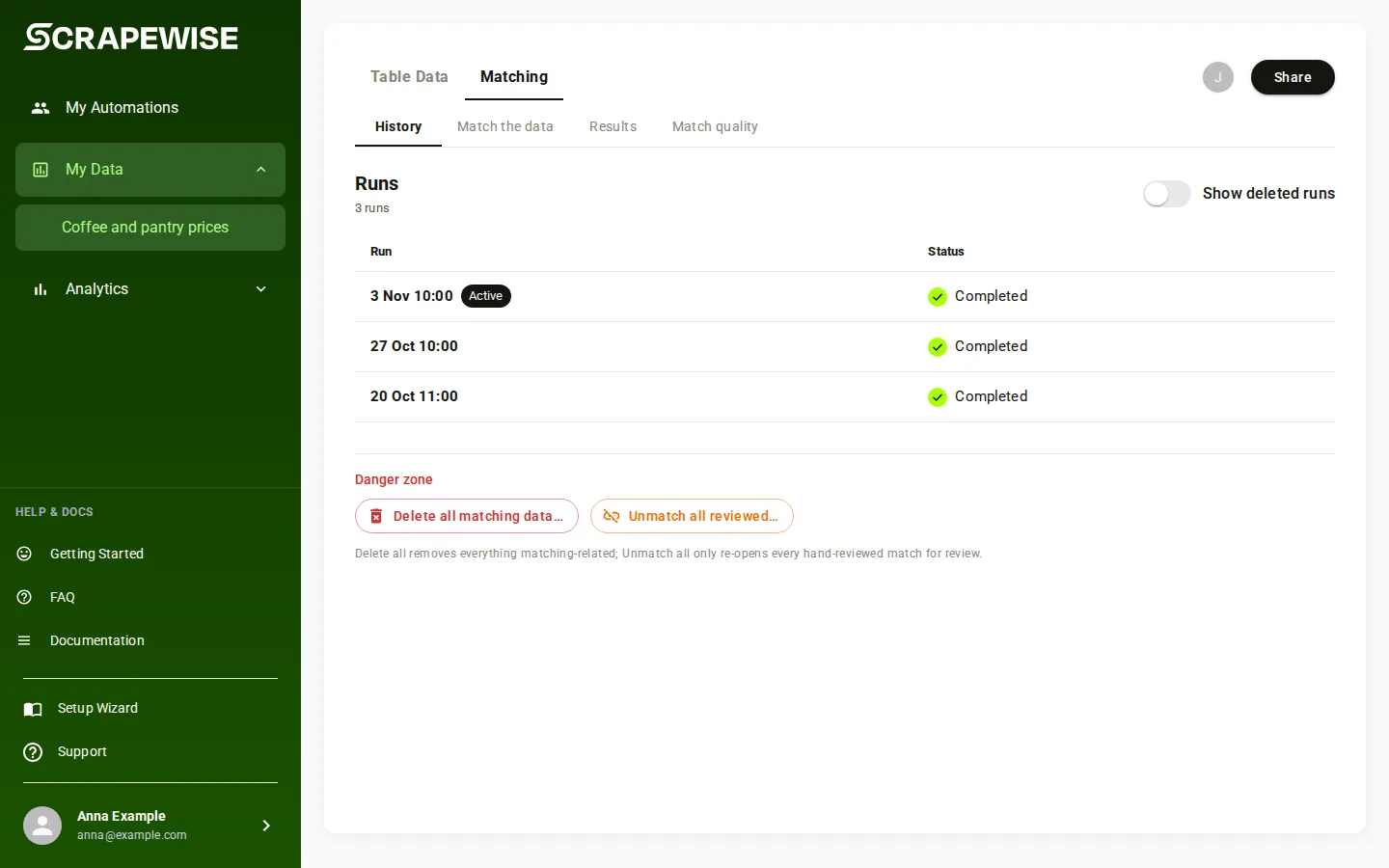
The Status column is one short word: Completed, Failed, Stopped, Running, Queued, Draft or Held. The reason is in the run’s details (”+”). “Held” means the result looked wrong in size, so it was not delivered and the previous results are kept. A run skipped for a low wallet shows “Not started: balance too low” in Cost.
- Base address
https://portal.scrapewise.ai/api/scraper-api, headerAuthorization: Bearer <key>. Which key: a Read key looks, a Full key also changes things, see Read or Full. - With a Full key, set the schedule:
PATCH /api/scraper/group/{id}/match/schedulewith a newIdempotency-Keyheader. The PATCH never starts a run. - With a Full key, clear the schedule by sending the body
null. - Scheduled runs keep your current matches by default. Add
"scheduledAutoMatches": "REPLACE"to the schedule body to let each scheduled run replace the automatic matches (KEEP_ADDis the default). Scheduled runs always keep your review decisions. - With a Read key, read the schedule and the next run time:
GET /api/scraper/group/{id}/match(schedule,nextRunAt,schedule.scheduledAutoMatches). - With a Read key, list the runs:
GET /api/scraper/group/{id}/match/history. AddwithDeleted=trueto see deleted runs too. Each run also hasrunChoices,keptCount,keptDropped,verdictApplyandledgerStatus, see Rounds and kept pairs. - With a Read key, download the daily matched file, see Daily matched file.
curl -X PATCH "https://portal.scrapewise.ai/api/scraper-api/api/scraper/group/[GROUP ID]/match/schedule" \
  -H "Authorization: Bearer $SCRAPEWISE_FULL_KEY" \
  -H "Idempotency-Key: [NEW UUID]" \
  -H "Content-Type: application/json" \
  -d '{ "type": "WEEKLY", "daysOfWeek": ["MONDAY"], "time": "06:00", "zone": "Europe/Tallinn", "scheduledAutoMatches": "KEEP_ADD" }'
type | Runs |
|---|---|
AFTER_SCRAPES | After each new scrape of the group |
DAILY | Every day at time |
EVERY_N_DAYS | Every intervalDays days (1 to 366) at time |
WEEKLY | On the daysOfWeek (at least one) at time |
time is HH:mm (24 h). zone is a time zone name, default Europe/Tallinn. A new schedule starts from now; missed earlier times are not run. The answer has schedule, nextRunAt and a new version.
- Connect your assistant with a Full key to change the schedule, or a Read key to read.
- Ask it to set the schedule, for example “match this group every Monday at 06:00 Tallinn time”. The tool is
scrapewise_update_matcher_schedule(Full) with a newidempotency_key. To stop automatic matching, it sends the bodynull. To let each scheduled run replace the automatic matches, it addsscheduledAutoMatchesset toREPLACE(the defaultKEEP_ADDkeeps them). - Ask it when the next run is:
scrapewise_get_matcher_job(Read), fieldnextRunAt. - Ask it for the run history:
scrapewise_get_matcher_history(Read). Each run says what it kept, what was new and which decisions it applied. - To read the pairs of a past run, undo a start fresh or set how many runs keep their pairs, see the sections below.
- Ask it whether the daily matched file is ready:
scrapewise_get_matched_export_latest_status(Read). It gives the address to download it.
scrapewise_update_matcher_schedule
{
  "id": "[GROUP ID]",
  "idempotency_key": "[NEW UUID]",
  "body": { "type": "DAILY", "time": "06:00", "zone": "Europe/Tallinn" }
}
Rounds and kept pairs
Each run that finishes is one round in History. It records the choices you made at Run (see Your current matches) and what happened:
| In the run details | Meaning | API field |
|---|---|---|
| ”Started by" | "Run by you” or “Scheduled run” | runChoices.scheduled |
| ”Automatic matches”, “Manual matches” | The choices of this run | runChoices.auto, runChoices.manual |
| ”Kept from before / new” | Matches kept from the run before, and new ones | keptCount |
| ”Manual decisions applied” | Your approve and reject decisions this run used | verdictApply.applied |
| ”Decisions not applied” | The product or your matching product is not in this run. They apply again when it comes back. | verdictApply.unapplied |
| ”Decisions for the next run” | Decided while this run was writing its results. The next run uses them. | verdictApply.late |
| ”Kept matches dropped” | The product or its old match is no longer in the data. | keptDropped |
The kept and dropped counts are not shown for a run that failed, was cancelled, stopped or replaced.
The pairs of a past run. Each finished run keeps its own list of pairs, so you can still read an old run’s matches after a newer run replaced them. In the portal, press “View matches” in the run details. The list “Matches of this run” shows “Product”, “Matched with”, “Score” and “How”: “You approved”, “Kept from before” or “Automatic”.
- API.
GET /api/scraper/group/{id}/match/runs/{runId}/pairs(Read or Full). QuerykindisMATCH(default) orREVIEW,pagestarts at 0,sizeis 1 to 500 (default 100). - MCP.
scrapewise_get_matcher_run_pairs(Read) withid,runId, and if you wantkind,pageandsize. - The answer.
{runId, kind, ledgerStatus, content, totalElements, page, size}. Each pair hassourceScraperId,sourceIdentity,masterRef,decision,score,matchOrigin,sourceTitleandmasterTitle.
ledgerStatus | In the portal | Meaning |
|---|---|---|
COMPLETE | The full list | |
TRUNCATED | ”This list was cut at its size limit.” | The list was too big (more than 100 MB). Review pairs are cut first. |
PARTIAL | ”Part of this list could not be saved.” | Some pairs are missing |
NONE | ”No list of matches was kept for this run.” | No list: an older run, a run that did not complete, or a run older than your kept runs. The answer is an empty page. |
curl -H "Authorization: Bearer $SCRAPEWISE_READ_KEY" \
  "https://portal.scrapewise.ai/api/scraper-api/api/scraper/group/[GROUP ID]/match/runs/[RUN ID]/pairs?kind=MATCH&page=0&size=100"
How many runs keep their pairs
By default the newest 10 runs keep their list of pairs. You can set a number from 1 to 10. Older runs stay in History with their counts; only their list of pairs goes. Matches you approved are never removed.
Set runsKept with the API or MCP.
- API.
PATCH /api/scraper/group/{id}/match/history-settings(Full) with the body{"runsKept": 5}and a newIdempotency-Keyheader. The answer is{"runsKept": 5}. Read the value back inrunsKeptofGET .../match/config-status. - MCP.
scrapewise_update_matcher_history_settings(Full) withid, a newidempotency_keyand the body{"runsKept": 5}. - Errors. A number outside 1 to 10, or no number: 400
FIELD_INVALID“runsKept must be a whole number from 1 to 10. Nothing was changed.” A Read key gets 403. An unknown group gets 404.
scrapewise_update_matcher_history_settings
{
  "id": "[GROUP ID]",
  "idempotency_key": "[NEW UUID]",
  "body": { "runsKept": 5 }
}
Undo start fresh
“Start fresh” sets your earlier decisions aside from that run on. It does not delete them. You can undo the newest start fresh.
- Portal. In History, open the run that started fresh with ”+” and press “Undo start fresh”. Decided pairs leave Review now. Your approved matches come back with the next run. The portal says “Start fresh is undone. Decided pairs left Review.”
- API.
POST /api/scraper/group/{id}/match/runs/{runId}/undo-fresh(Full), no body, with a newIdempotency-Keyheader. The answer is{runId, configId, cutoffAt, undone: true, undoneAt}. Sending it again gives the same answer. - MCP.
scrapewise_update_matcher_fresh_undo(Full) withid,runIdand a newidempotency_key.
curl -X POST "https://portal.scrapewise.ai/api/scraper-api/api/scraper/group/[GROUP ID]/match/runs/[RUN ID]/undo-fresh" \
  -H "Authorization: Bearer $SCRAPEWISE_FULL_KEY" \
  -H "Idempotency-Key: [NEW UUID]"
Only the newest start fresh can be undone.
Daily matched file
One fixed address per group always gives the newest file of all matched rows, as gzip JSON Lines or CSV. Use it for a daily import. Read and Full keys both work.
curl -H "Authorization: Bearer $SCRAPEWISE_READ_KEY" -o matched.jsonl.gz \
  "https://portal.scrapewise.ai/api/scraper-api/api/scraper/group/[GROUP ID]/match/export/latest?format=jsonl&bucket=matched"
| Answer | Meaning |
|---|---|
200 | The file, gzip, for the group’s current run |
202 | The file is being built. Wait Retry-After seconds and ask again |
304 | You sent If-None-Match with the last ETag, and nothing changed |
404 | EXPORT_NO_MATCHED_RUN: the group has no finished run yet |
429 | EXPORT_DOWNLOAD_BUSY: too many downloads at once. Wait Retry-After |
- Is it ready?
GET .../match/export/latest/status(Read, free) or the MCP toolscrapewise_get_matched_export_latest_status(Read).ready: truemeans the file aturlis complete. - Keep it ready.
PUT .../match/export/auto(Full) with{"enabled":true,"formats":["jsonl"],"bucket":"matched"}builds a new file after each run and after review decisions.GET .../match/export/auto(Read) reads the setting. - A one-off file with your own filters: see Exports and delivery.
Errors you may see
FRESH_NOT_CURRENT. Nothing was changed.FIELD_INVALID means a wrong kind, page or size.Questions
Does a scheduled run cost money?
Yes, the same as a run you start by hand. It is charged to the group owner’s wallet. When the balance is too low, that run is skipped and shows in History.
Does changing the schedule start a run?
No. Only Save and run (with Run once) or Run match start a run.
What does Held mean?
The result looked wrong in size, for example far fewer rows than before. It was not delivered and your current results stay as they are.
Do scheduled runs keep my matches?
Yes, by default each scheduled run keeps your matches and only adds new ones. To change this, turn on “Use this automatic choice for scheduled runs” when you press Run with “Replace with this run”, or set scheduledAutoMatches over the API. Scheduled runs always keep your decisions.
Can I see what setup an old run used?
Yes. In Match quality, open Settings used for this run. Over the API, each history row carries the setup that run used.
Everything on this screen
Daily file:
- Keep a daily file ready: a switch in the export window. When on, a matched file is built each day so it is ready when you need it.
Last updated 10 November 2026