Product Matcher
Run a match
Start a match run for your group, see what it costs before it starts, and stop it if you need to. You start the run yourself. Before the run starts, the most it can cost is held in your wallet. If your wallet holds too little, the run does not start and nothing is charged.
- Open your group in My Data, pick the Matching tab, then Match the data.
- Check your lines between Your list and each Compared shop (see Set up a match). If you see Unsaved changes, press Save config first.
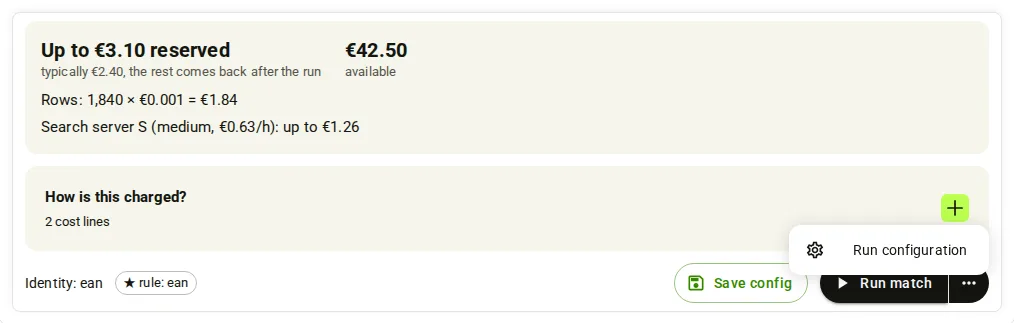
- Open the 3-dots menu next to Run match and pick Run configuration. Match settings shows the Run summary (your list, the lines and the shops) and the Schedule.
- Read the cost next to the button. It says “Up to” an amount “reserved” and what a run typically costs; the rest comes back after the run. Open How is this charged? to see each cost line.
- Press Run match. The Run this match again? window opens with the cost. Under “What happens to your current matches”, pick what happens to your automatic matches and to your own decisions. The safe choice (“Keep and add new” and “Keep all”) is set each time. See Your current matches.
- Press Run. The button shows “Queuing…” and then Running. The amount is now held in your wallet.
- To end the run early, press Stop next to the button, then Stop run. To stop it and start a new run at once, press Run match again: the button in the window reads “Stop it and run”. See Stop it and run.
- When the run ends, open Results. Rows are split into Matched, No match and Review. Your current matches stay visible until the new run finishes. If it fails or is stopped, nothing changes.
Note
The cost of the run is held in your wallet when it starts. When the run ends, you pay what it used and the rest comes back to your balance.
Note
If you press Run without changing anything on the canvas, the run uses your stored setup and your stored review levels as they are.
- Use a Full key. A Read key can read the cost but can save nothing and start nothing. Base address
https://portal.scrapewise.ai/api/scraper-api, headerAuthorization: Bearer <key>. - With a Read key, read the cost first:
GET /api/scraper/group/{id}/match/estimate.canStart: falsemeans your wallet is short bymissingMicros. - With a Read key, read the saved setup and its
version:GET /api/scraper/group/{id}/match. - With a Full key, send the same setup back with
PUT /api/scraper/group/{id}/match,"draft": falseand theversion. Send a newIdempotency-Keyheader. - To choose what happens to your current matches, add
autoMatches(KEEP_ADDorREPLACE) andmanualMatches(KEEPorFRESH) at the top level of the same body. Leave them out to keep both. Add"replaceRunning": trueto stop a run that is going and start this one. See Your current matches. - The answer to the Full key call is 200 with
runPhase: "queued"and arunServerblock. The amount inrunServer.reserveMicrosis now held. Awarningslist in the answer tells you about side effects, for exampleRUN_STOPPEDorMAIN_LIST_CHANGED. - With a Read key, follow the run with
GET /api/scraper/group/{id}/match/config-status(statusisQUEUED,INITIALorRUNNINGwhile it goes, thenCOMPLETEDorFAILED). - To stop it, with a Full key:
POST /api/scraper/group/{id}/match/{matcherJobId}/cancelwith a newIdempotency-Keyheader.matcherJobIdis theidfrom the answer of step 6.
curl -X PUT "https://portal.scrapewise.ai/api/scraper-api/api/scraper/group/[GROUP ID]/match" \
  -H "Authorization: Bearer $SCRAPEWISE_FULL_KEY" \
  -H "Idempotency-Key: [NEW UUID]" \
  -H "Content-Type: application/json" \
  -d '{ "masterData": [MASTERDATA FROM YOUR READ], "scope": [SCOPE FROM YOUR READ], "version": "[VERSION FROM YOUR READ]", "draft": false,
        "autoMatches": "KEEP_ADD", "manualMatches": "KEEP" }'
{ "id": "[JOB ID]", "status": "INITIAL", "runPhase": "queued",
  "runServer": { "sizeClass": "M", "reserveMicros": 1932750 } }
Amounts end in Micros: 1,000,000 is EUR 1. 1932750 is EUR 1.93.
The estimate answer:
{
  "sizeClass": "M",
  "customerPricePerHourMicros": [PRICE PER HOUR],
  "perRowMicros": 150,
  "scopeRows": 50000,
  "lines": [
    { "tier": "server", "units": 6, "unitPriceMicros": [PRICE PER HOUR], "maxMicros": [AMOUNT], "typicalMicros": [AMOUNT] },
    { "tier": "rows", "units": 50000, "unitPriceMicros": 150, "maxMicros": 7500000, "typicalMicros": 7500000 },
    { "tier": "pictures", "units": 1240, "unitPriceMicros": 1500, "maxMicros": 1860000, "typicalMicros": 1860000 }
  ],
  "reserveMicros": [AMOUNT], "typicalMicros": [AMOUNT],
  "balanceMicros": [AMOUNT], "reservedMicros": 0, "availableMicros": [AMOUNT],
  "canStart": true, "missingMicros": 0, "chargeFrom": "2026-11-03T00:00:00Z"
}
Note
With draft set to true, the same PUT only saves. Nothing is held and no run starts.
- Connect your assistant with a Full key. A Read key can ask for the cost but cannot start a run.
- Ask for the cost first: tool
scrapewise_get_matcher_run_estimate(Read). Ask the assistant to tell you the amount held and the typical cost. - Ask it to read the setup and its
version:scrapewise_get_matcher_job(Read). - When you agree to the cost, ask it to start the run:
scrapewise_update_matcher_job(Full) with the same setup, theversion,draftset tofalseand a newidempotency_key. Tell it what happens to your current matches:autoMatches(KEEP_ADDorREPLACE) andmanualMatches(KEEPorFRESH). Both keep by default. - Ask it to follow the run with
scrapewise_get_matcher_config_status(Read). - To stop a run, use Stop in the portal or the cancel call in the API tab. There is no MCP tool to stop a match run (the cancel call needs a Full key).
scrapewise_update_matcher_job
{
  "id": "[GROUP ID]",
  "idempotency_key": "[NEW UUID]",
  "body": { "masterData": [FROM scrapewise_get_matcher_job], "scope": [FROM scrapewise_get_matcher_job], "version": "[VERSION]", "draft": false,
            "autoMatches": "KEEP_ADD", "manualMatches": "KEEP" }
}
Note
Ask your assistant to show you the estimate and to start only after you agree to the cost.
Your current matches
Each Run asks what happens to the matches you have now. There are two choices. The window starts at the safe choice every time: keep both.
| Choice | In the portal | API and MCP | What happens |
|---|---|---|---|
| Automatic matches (made by the rules) | “Keep and add new” (default) | autoMatches: "KEEP_ADD" | Matches you already have stay. This run only adds matches for products that have none. |
| ”Replace with this run” | autoMatches: "REPLACE" | This run’s result replaces the automatic matches when it finishes. Your approved matches are not touched. | |
| Manual matches (your approve and reject decisions) | “Keep all” (default) | manualMatches: "KEEP" | Your approved matches stay matched and rejected pairs are never proposed again. |
| ”Start fresh” | manualMatches: "FRESH" | From this run on, your earlier decisions are ignored, also by scheduled runs. They are not deleted. You can undo it in History, see Undo start fresh. |
- Old matches stay. Your current matches stay visible until the run finishes. If it fails or is stopped, nothing changes.
- What wins inside a run. For each product, a rejected pair is never matched. Then a pair you approved wins. Then, with “Keep and add new”, the old automatic match wins over a different new one. Only after that do the rules decide. Your choices never change scores, Floor, Max or lines.
- Decisions during a run. A decision you make while a run works is used by this run if you make it before the run starts writing results. Otherwise the next run uses it.
- Scheduled runs. If the group has a schedule, the window also shows “Use this automatic choice for scheduled runs”. Turn it on to use the same automatic choice for scheduled runs (not with “Start fresh”). Scheduled runs always keep your decisions. See Schedule and history.
- You changed your list. If you changed the main list, old matches stay until the run finishes. Decisions on products that are not in the new list stop applying, but they are kept. Over the API the answer has the warning
MAIN_LIST_CHANGED. A shop you left out givesSOURCE_DROPPED: its matches leave when the run completes. - Where a match came from. Each matched row has
matchOrigin:VERDICT(you approved it),KEPT(kept from before) orENGINE(made by this run). An older row without the field isENGINE. - Counts before you run.
GET /api/scraper/group/{id}/match/config-status(Read) andscrapewise_get_matcher_config_statusgiveautomaticMatches(your current matches, not counting your approvals) anddecisionCounts(approvedandrejected, the decisions a “Start fresh” would set aside).
Stop it and run
While a run is waiting or running, the button in the run window reads “Stop it and run”. A warning above the choices says that the matching done so far in the current run is lost, and your delivered matches stay. The window says: “This replaces the current run.”
- API. Send
PUT /api/scraper/group/{id}/match(Full) with"replaceRunning": true. The answer has the warningRUN_STOPPED: the run in progress was stopped and a new run was queued. Your delivered matches stay until the new run completes. - MCP.
scrapewise_update_matcher_job(Full) withreplaceRunningset totrue. Ask your assistant to do this only when you agree, because the work of the stopped run is lost. - Without it. A Run while another run is busy can get 409
ENGINE_BUSY. Wait for the run to end, or send the Run again withreplaceRunning. - Cost. The new run holds money in your wallet like any run.
Costs
A run costs server time, rows and pictures. The estimate shows the cost before you start. In the portal, open How is this charged? next to Run match:
Search server M (cpx52, EUR [PRICE]/h): up to EUR [AMOUNT]
Rows: 50,000 × EUR 0.00015 = EUR 7.50
Pictures: 1,240 × EUR 1.50 per 1,000 = EUR 1.86
Pictures are counted only when photos are compared, see Photo check. The server price depends on the size of your group.
- Held, then settled. When the run starts, the most it can cost is held (“Up to … reserved”). When it ends you pay what it used; the rest comes back.
- Our fault, no charge. If the server fails to start, or the run stops because of a fault on our side, you pay nothing.
- You stop it. If you stop a run after its server is ready, the started hours are charged.
- Pictures in the estimate. The pictures line is based on your group’s last comparable run: rows × (pictures ÷ rows of that run) × 1.25, never more than one picture per row. With no earlier run, it counts one picture per row. The amount held when you press Run uses the same estimate, also with “Stop it and run”.
- History. After the run, the Cost column in History shows what you paid, for example “Server EUR 0.40 + rows EUR 0.10 + 1,200 pictures EUR 1.80”.
Errors you may see
reserveMicros (needed), availableMicros and missingMicros, and the text “Matching did not start: … Top up … and run again. The previous result is kept.”version.replaceRunning: true to stop it and start yours.KEEP_ADD or REPLACE, KEEP or FRESH). Nothing was changed.{
"code": "FLOW_RUN_SERVER_WALLET_LOW",
"message": "Matching did not start: this run needs up to €1.93 and your available balance is €0.50. Top up €1.43 and run again. The previous result is kept.",
"reserveMicros": 1932750, "availableMicros": 500000, "missingMicros": 1432750,
"errors": [ { "code": "FLOW_RUN_SERVER_WALLET_LOW", "message": "...", "reserveMicros": 1932750, "availableMicros": 500000, "missingMicros": 1432750 } ]
}
The other money stop, 402 WALLET_INSUFFICIENT_BALANCE, is for scrapes and requests, not for match runs. See Wallet and billing.
Questions
Is my old result lost when I start a new run?
No. The previous result is kept until the new run ends. A run that fails or is stopped leaves the old result in place. With “Keep and add new”, the matches you have also stay after the run, and the run only adds new ones.
Can I start a new run while one is going?
Yes. Press Run match again, then “Stop it and run”. The running run is stopped and its work is lost. Your delivered matches stay until the new run completes.
Can I stop a run?
Yes. While a run is going, Stop sits next to Run match and on the run’s row in History. If you stop after the server is ready, the started hours are charged.
What happens to a scheduled run when my wallet is low?
It is skipped. History shows it with “Not started: balance too low”. Top up and run again. See Schedule and history.
How do I remove the setup?
In Match settings, press Delete matching configuration. It removes only the setup; matched results and history stay. You cannot delete while a run is going.
What do Floor and Max do?
Rows of a step under Floor are no match, at or above Max a match, in between go to review. See Steps, Floor and Max.
Everything on this screen
Run, stop and wallet:
- Run this match again? or Run a new match?: the question before a run. Run or Create job & run starts it.
- Stop this matching run?: Stop run ends it, Keep running closes the question.
- Not enough balance for this run: nothing was started and nothing was charged. Top up balance opens the top-up, Not now closes the window.
- Your balance is empty: shown when the wallet has nothing left.
- Delete the current matching configuration? and Delete configuration: removes the setup after you confirm.
- Delete all matching data…: removes every match result of the group. Delete ALL matching data for this group? asks you to type the group name in Type the group name to confirm, then press Delete everything.
Last updated 10 November 2026